
Use your WebInk account to add a new payment method and choose how it applies to your subscriptions. Saving a card and assigning it to an existing subscription are separate steps, so check the subscription afterwards.
Start here: Log in to your WebInk account using the email address or username associated with your service.
1. Open Payment methods
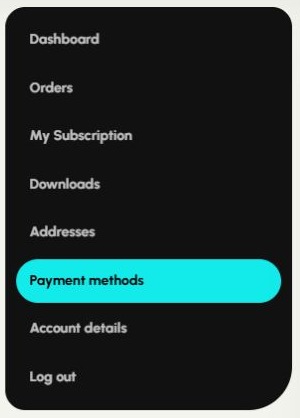
Choose Payment methods in the account menu, or open your saved payment methods after logging in.
2. Add the new method
Select Add payment method. Enter the requested details in the secure payment form and complete any verification your payment provider requires.
3. Choose whether to update current subscriptions
If you want the new method used for your existing subscriptions, select Update the payment method for all of my current subscriptions when that option is shown. Leave it unchecked if you only want to save the method for future use. Then select Add payment method to save.

4. Verify the subscription payment method
Return to My Subscription or Subscriptions, open each relevant service and check its payment details. Follow any confirmation shown. Do not assume every existing subscription changed just because a new method was saved or made the default.
Change only one subscription
Open the subscription you want to update. If it shows Change payment or Change payment method, select it, choose or enter the new method and submit the payment-method update form. Leave any update-all-subscriptions option unchecked if you only want to change this service. Return to the subscription and verify the result.
Why is Change payment missing?
The option depends on the subscription status and payment gateway. Services using manual renewal may not show it because you choose a payment method when paying each renewal. If the option is unavailable, contact WebInk.
Keep the old method available until you have confirmed which method each active subscription will use. If a renewal has already failed, open the unpaid order and follow any Pay option shown, or contact us for help.
Need help? Email hello@webink.solutions or contact WebInk. Include the service name and your account email. Keep card numbers, security codes and passwords out of your message.
Related help
Screenshots show the WebInk account controls as of October 27, 2026. Available actions vary by service, subscription status and payment method.