
Manage your WebInk services from one account. Choose a guide below for screenshots and the steps to follow.
Start here: Log in to your WebInk account using the email address or username associated with your service.
What would you like to do?
- Cancel a subscription — find the Cancel button and check your cancellation status.
- Change your payment method — add a method and check which subscriptions will use it.
- Upgrade or downgrade your service — find available plan changes and review the switch before confirming.
Find your subscription
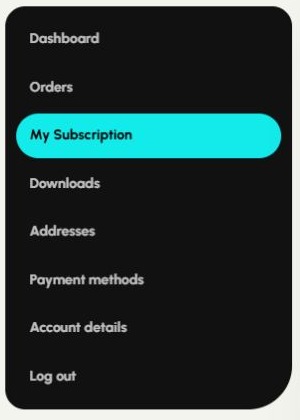
After logging in, select My Subscription. Accounts with several subscriptions may show Subscriptions instead; choose View next to the service you need.
Find an order or payment record
Choose Orders in the account menu, then View beside the relevant order to see its details. Subscription details also include a Related orders section. For an unpaid renewal, follow a Pay option if shown. If you need a specific invoice or cannot find a payment, contact WebInk.
Update your account or billing details
Use Account details for your name, account email or password. Use Addresses to edit saved billing or shipping addresses. For an existing subscription, also check the address on its details page and follow any subscription-specific update option shown; ask us if it still shows old information.
Having trouble logging in?
Use Lost your password? on the login page. Enter the account email or username and check your inbox and spam folder for the reset message. If your subscription is missing after login, check that you used the email associated with the purchase.
Need help? Email hello@webink.solutions or contact WebInk. Include the service name and your account email. Keep card numbers, security codes and passwords out of your message.
Browse all WebInk help articles
Screenshots show the WebInk account controls as of October 27, 2026. Available actions vary by service, subscription status and payment method.